station_mapping documentation
The station_mapping library is designed for mapping the location of hydrological station data onto the optimum location of a hydrological model grid (netcdf).
This tool is available as both command line and Python API
The optimum grid cell location is searched through optimising the upstream area error and the cell distance(s) from the station nearest grid cells. In this tool, users can define their acceptable area difference/ error using the parameter max_area_difference (%) and the maximum cell radius parameter: max_neighboring_cell (number of cells) to search for this optimum grid. The tool can also be parameterised to ignore further searching of optimum cells when upstream area difference of a station nearest grid is below, i.e. when the uspteam area of the nearest cell to the station is already deemed acceptable by defining min_area_diff(%).
For instance, refer to illustration example below, if the specified max_area_difference is 10%, then the optimum grid to be returned when specified max_neighboring_cell = 1 cell, is the one with 7% upstream area difference (blue). While if the max_neighboring_cell = 2 cell, then the cell with 5% upstream area difference will be returned as the optimum grid instead.
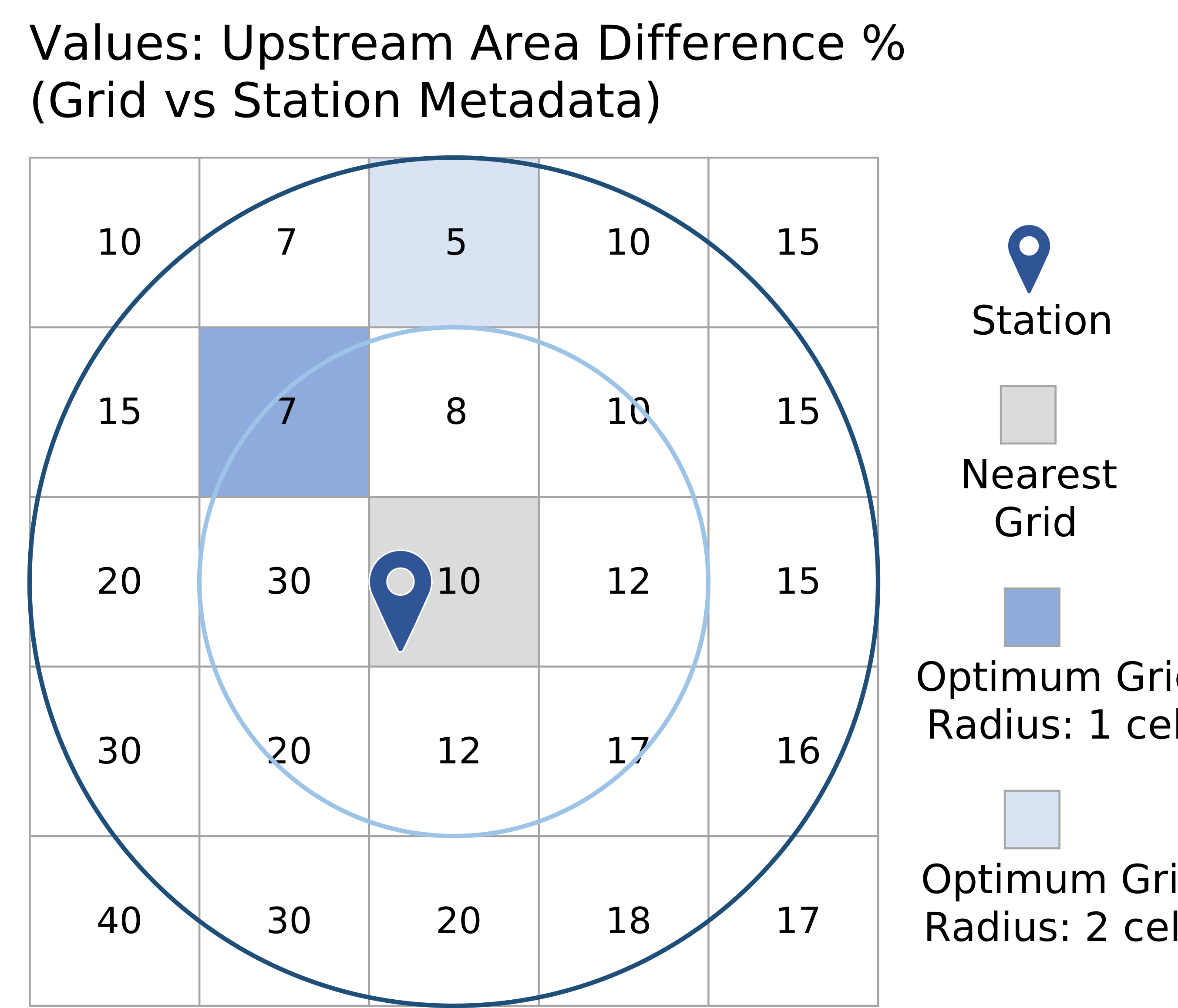
In conclusion, the tool only searches for grid cell with optimal upstream area between the user defined min_area_diff and max_area_diff that are within the max_neighboring_cell radius from the station location.
How to use
Station Mapping with Command Line
To use the station_mapping as command line, follow these steps:
-
Prepare your data input: station data and grid data in the appropriate format. Station data should be in a CSV file, and grid data should be in a NetCDF file. PLease ensure all lattitudes and longitude values in decimal degree format/ DD.
-
Create a JSON configuration file specifying the paths to your data files, column names, and other relevant parameters.
-
Run the
station_mapping.pyscript with the path to your configuration file:
./station_mapping.py path/to/your/config.json
Station Mapping as python script, e.g. called within jupyter notebook or python file
-
Prepare your data input: station data and grid data in the appropriate format. Station data should be in a CSV file, and grid data should be in a NetCDF file. Ensure that all the values of the lattitude and longitude in CSV files columns are in decimal degree format/ DD (NOT Degree Minute Seconds/ DMS). These affect both stations and manual mapping locations.
-
Create a configuration dictionary
config = {
    # Netcdf information
    "upstream_area_file": "upArea.nc", #file path to netcdf of upstream area

    # Station Metadata CSV information
    "csv_file": "outlets.csv", #file path to csv station metadata
    "csv_lat_col": "StationLat", # column name for latitude (string)
    "csv_lon_col": "StationLon", # column name for longitude (string)
    "csv_station_name_col": "StationName", # column name for station  (string)
    "csv_ups_col": "DrainingArea.km2.Provider", # column name for metadata of upstream  (string)

    # Mapping parameters (3x)
    "max_neighboring_cells": 5, # Parameter 1: maximum radius to search for best cells (no. of cells)
    "max_area_diff": 20, # Parameter 2: acceptable/ optimum upstream area difference (%)
    "min_area_diff": 0, # Parameter 3: minimum upstream area difference (%) between nearest grid and the station metadata

    # manual mapping as reference for evaluation (optional)
    "manual_lat_col": "LisfloodY",  # column name for latitude of manually mapped station (string)
    "manual_lon_col": "LisfloodX", # column name for longitude of manually mapped station (string)
    "manual_area": "DrainingArea.km2.LDD", # column name for area of manually mapped station (string)

    # if Output directory is provided, it will save the geodataframe outputs to geojson and csv readable by GIS or jupyter interactive
    # "out_directory": None # put none if you don't want to save the output
    "out_directory": "output"
}
- Run the
station_mappingfunction with the config dictionary input and store result as dataframe (df) Since in the above example, the out_directory is not empty/ None, i.e. hence geojson and csv output of the station mapping tool will be saved in the specified directory.
# import station mapping
from hat.mapping.station_mapping import station_mapping
# call station_mapping function and apply on the created config dictionary
df = station_mapping(config)
Process Overview
- Read and Validate Input Data: Loads station metadata from the specified station metadata (CSV file) and upstream area grid data (NetCDF file), importing data, based on column name defined and the parameters in the configuration.
- Nearest Grid Cell Search: For each station, calculates the nearest grid cell based on latitude and longitude of each station.
- Optimum Grid Cell Search: Searches each neighboring cells at a +1 cell radius at a time until a specified maximum radius
max_neighboring_cellsis reached. At every +1 cell radius this searches for grid where its upstream area difference from the recorded station metadata is minimum, or until it reaches desired value ofmax_area_diff(%). When this minimum value ofmax_area_diffis reached, the search will be stopped and the particular cell location will be stored. It is also possible to ignore searching for optimum grid when the upstream area of nearest grid cell is already below or equal tomin_area_diff. - Upstream Area and Distance Calculation: For both nearest and optimum grids found for each station, upstream area is retrieved. Cell distance(s) from optimum grid to the stations grid (same as nearest grid) is calculated.
- Manual Mapping Output (Optional): If manual mapping data is provided, it will be stored to the result dataframe and later could be used as reference to compare automated mapping results to evaluate mapping performance. This can be done through evaluation module.
- Save Results: If an output directory is specified, saves the processed data as GeoJSON and CSV files for further analysis or visualization. Otherwise it only returns result as dataframe.
Outputs
The following elements (column) will be written as dataframe as the expected station_mapping output.
Note: _lat and _lon refer to the actual lattitude and longitude of the location, while _lat_idx and _lon_idx refer to the lat and lon grid ID.
-
Station data
station_name,station_lat,station_lon,station_area -
Near grid data
near_grid_lat_idx,near_grid_lon_idx,near_grid_lat,near_grid_lon,near_grid_area,near_grid_polygon -
Optimum grid from search routine
optimum_grid_lat_idx,optimum_grid_lon_idx,optimum_grid_lat,optimum_grid_lon,optimum_grid_area,optimum_area_diff,optimum_distance_km,optimum_grid_polygon -
Manually mapped variable
manual_lat,manual_lon,manual_lat_idx,manual_lon_idx,manual_area -
GIS compatble output files (optional) if the "out_directory" in the
configurationis specified, then the following files will be written in the directory:stations.geojson: stations point vector in geojson (readable in GIS)near_grid.geojson: nearest grid vector (readable in GIS)optimum_grid.geojson: optimum grid vector (readable in GIS)stations2grid_optimum: polyline connecting each station location to the optimum grid's centroid (readable in GIS)stations.csv: the dataframe containing all the data column mentioned above in csv format. (readable in GIS/ spreadsheet)
Other Related Module
evaluation
An additional module is available to evaluate the performance of the station mapping, in particular the optimum grid cell found for each station. The common case for this evaluation is to compare the resulting optimum grid cells with the manually mapped station, based on their upstream area difference (%), and cell distance(s).
-
Main function:
def count_and_analyze_area_distance -
How to use:
from hat.mapping.evaluation import  count_and_analyze_area_distance # import library

fig = count_and_analyze_area_distance(df, area_diff_limit, distance_limit, ref_name='manual', eval_name='optimum_grid', y_scale='log')
- Parameters:
-
df: dataframe resulted from running station_mapping toolarea_diff_limit: margin of acceptable error or differece of upstream area (%) between the reference manual mapping and the evaluated optimum griddistance_limit: distance margin that defines the acceptable location distance between reference and the evaluated grid. E.g. distance = 0 means perfect mapping, where optimum grid and manual mapping locations are at the same cell.ref_nameandeval_name: name of the reference and evaluated variable, the common case would be 'manual' for manual mapping as reference andoptimum_gridas the evaluated optimum grids.y_scale: scale for y axis or the number of counts/ frequency found for histogram figure, default is 'log', with option for 'linear'.
-
Outputs: Message display the counts of stations that are not found and found within the
error_margin. It also breaks down the count of found stations into those that are found within and outside thedistance_limit. When this 'distance_limit' is set as 0, it counts for perfectly mapped station.
In addition to these counts message display, the function also returns histogram of found stations counts (y-axis) for every cell distance (x-axis), see example screenshot below.

visualisation
A simple interactive map to be implemented on jupyter notebook to overlay the GIS output resulting from the station_mapping is also available.
This module is based on ipyleaflet.
Main function example of the module to overlay a geojson file as a map layer:
# Define map vector layer from geojson file
map_layer = GeoJSONLayerManager(
    "layer.geojson",  # geojson file
    style_callback=lambda feature: vector_style(feature, "blue", 0.5), # constant style
    name="<layer name>", # name for legend

# Create an InteractiveMap instance
my_map = InteractiveMap()

# Overlay layer to the interactive map
my_map.add_layer(map_layer)
Additional feature of this module include: * Modifying the style of the vector layer to a varying color (colormap) based on the specified variable. For choices of colormap classes, refer to matplotlib doc
# define color map and normalize values based on lower and upper limit
cmap = cm["PRGn"] # define colormap class

vmin, vmax = -10, 10
norm = plt.Normalize(vmin=vmin, vmax=vmax) #normalize to lower & upper limit variable values

map_layer = GeoJSONLayerManager(
    "layer.geojson",  # geojson file
    style_callback=make_style_callback("<variable name>", cmap, norm), # based on colormap instead of constant
    name="<layer name>", # name for legend

# ... add layer to interactive map
- Adding attribute table popup when clicked (line vector only)
# Add line click handlers after the layer has been added to the map
if line_layer.layer:
    line_layer.layer.on_click(
        make_line_click_handler(
            "station_name", # station name column name
            "station_area", # station area column name
            "near_grid_area", # near grid area column name
            "optimum_grid_area", # optimum grid area column name
            "optimum_distance_cells", # optimum distance column name
            my_map.map,  # Pass the map object as an argument
        )
    )
- Create and adding customized legend to the map
legend_widget = create_gradient_legend(cmap, vmin, vmax)
my_map.map.add_control(WidgetControl(widget=legend_widget, position="bottomright"))
Screenshot below is the example of the visualisation output in the notebook example:

In this example the station is indicated by the blue marker, with the dark grey rectangle as its nearest grid, and the other grid with varying color based on area difference colormap (legend, i.e. currently white) is the optimum grid. The black line connects the station location and the centroid of the optimum grid, and can be clickable to show the result attributes if the click handler is added.
Implementation Example in Jupyter notebook
For the implementation example of station mapping in Jupyter notebook, an example is created in station mapping notebook This configuration is based on DESTINE project, and you shall modify your netcdf and csv input file location accordingly. The example of evaluation module implementation is also attached to this jupyter notebook as well.
Additionally, please refer to this the station mapping visualisation notebook example here